
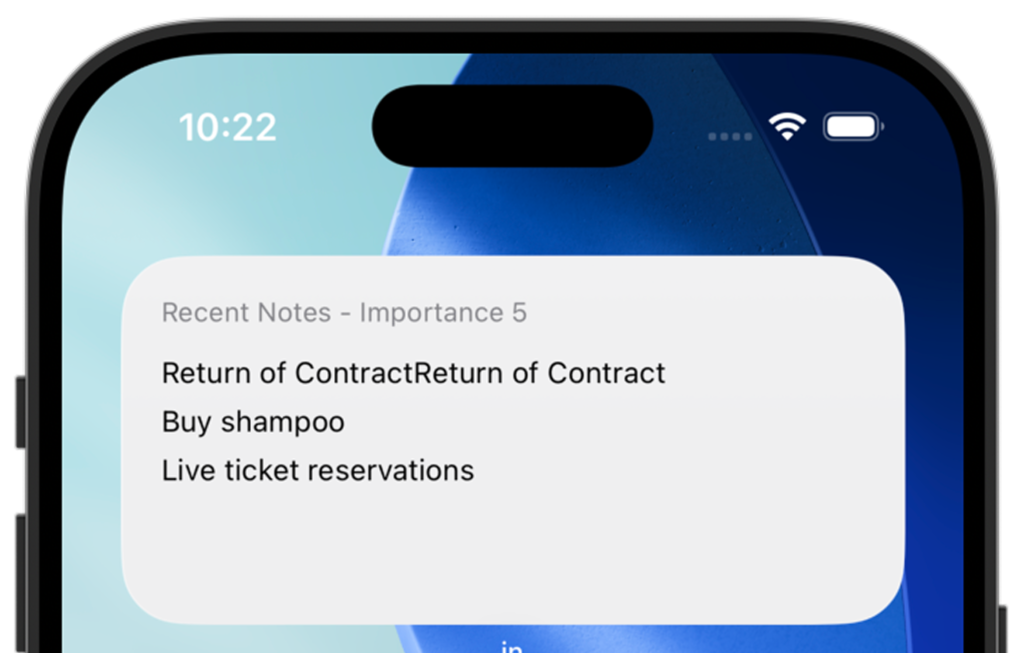
Setup
- Long-press on the Home Screen, then tap Edit → Add Widget
- Search for “in” and select it
- Choose your preferred widget size and tap Add
- Open the widget settings inside the app and adjust the tags or priority you want to display
How to Use
Using the Default Settings
→ Displays notes with Priority 5 from all notes in the widget
- Dump all notes and tasks into in without worrying about categories
- Swipe right on important notes or tasks to set them to Priority 5 (shown in red)
- Priority 5 notes will appear in the widget
Tip: You no longer need to manage To-Dos and notes separately!
Using Tags
→ Example: Display notes with the “ToDo” tag in the widget
- Dump all notes and tasks into in without worrying about categories
- Add the “ToDo” tag to notes you want to act on
- Notes with the “ToDo” tag will appear in the widget
- Notes with Priority 1 are automatically filtered out
- Tag-based widget filtering is available on the paid plan
Even More Useful
- Tap the widget
- in opens with the filter already applied
- Swipe left on a note to mark it as Done